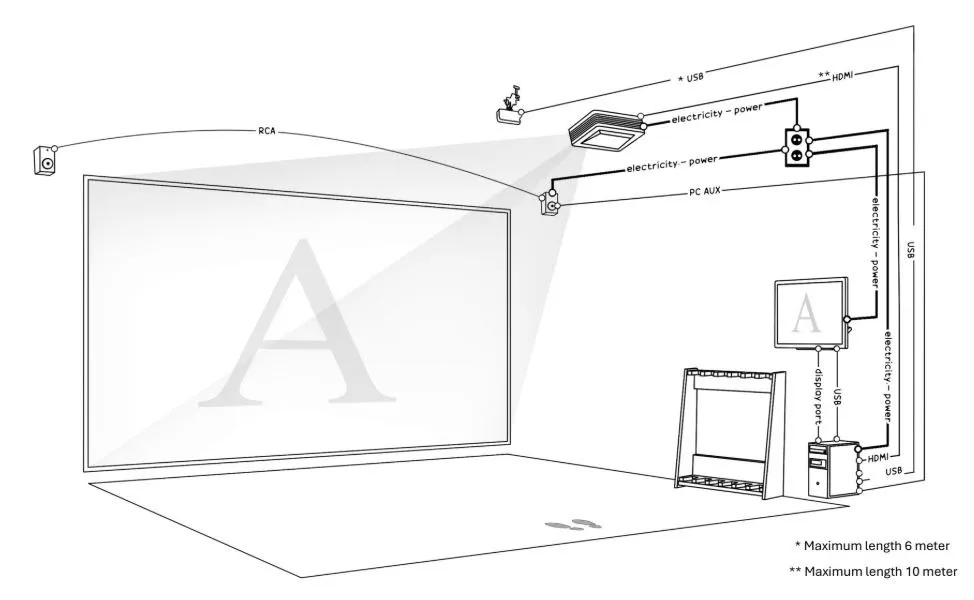
Click to zoom
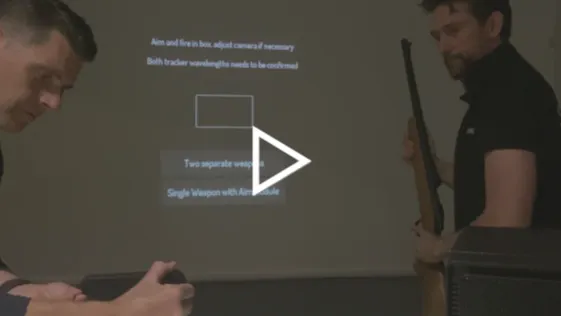
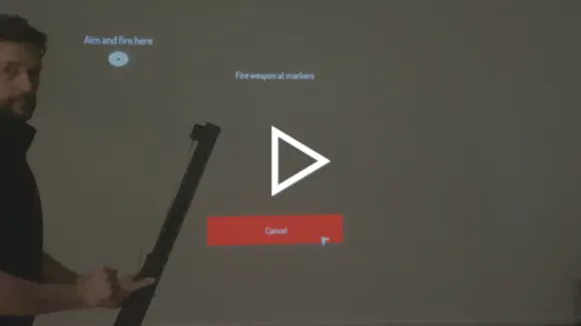
1. Go to the settings menu and choose screen calibration.
• Choose settings. Check the light value in the green and blue box in the upper left corner, see manual for recommended values.
• Fire at the middle of the screen and look for a green/magenta blob/dot to appear. If nothing’s visible, hold a light source in the center of the screen, flashlight from mobile phone works fine. Look for blobs/dots to appear on the screen. Refocus the camera lens if necessary. The most common error is that the camera is out of focus, you adjust focus by gently turning the lens.
• If none of the suggested troubleshooting actions above seem to have any effect, please contact your SimWay HUNT reseller for further instructions.
2. If SimWay Hunt doesn’t seem to react when you’re shooting at the screen with the dummy weapon, please follow these steps:
• Go to settings menu and choose screen calibration.
• Choose settings.
• Make sure the bolt handle is all the way down and locked into position.
• Check the weapon again by firing at the screen. Watch for a green/magenta blob/dot.
If the problem persists:
• Try another weapon just to rule out a possible camera or software malfunction.
• Try firing both rifles at the middle of the screen and look for green/magenta blob/dots, if neither weapon seems to work, please follow the instructions on how to check the camera above.
• If the other rifle works, check if they are using the same laser wavelength by checking the colors of the SimWay sticker, they come in red and yellow.
• If the rifles use different laser wavelength it could be a camera problem.
• Check which camera sees the working rifle by holding a hand in front of one camera lens whilst firing. Then try to adjust the focus of the other camera lens to see if this then picks up the other rifle fire.
• Check the batteries or make sure the replica has power.
• Check the weapon again by firing at the screen.
• Look for a green/magenta blob/dot on the screen.
3. The simulator keeps autofiring.
Make sure to block out the sunlight or anything emitting IR light.
Go to settings and check the light values and the threshold value.
1. Go to the Settings Menu and choose screen calibration.
• Choose settings.
• Check the light value in the green and blue box in the upper left corner, see installation for recommended values.
• Fire at the middle of the screen and look for a green/magenta blob/dot to appear. If nothing is visible, try aiming the camera towards a light source like the sun, a strong lamp or a window. Watch for a somewhat blurry, black and white image on the screen.
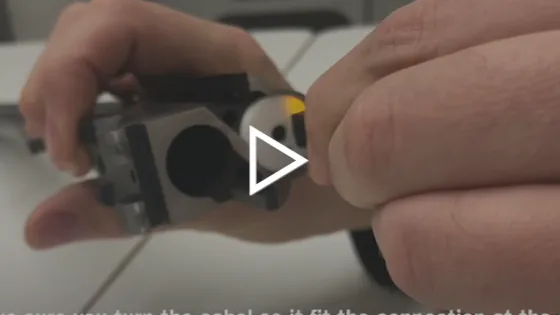
• Refocus the camera lens if necessary and put it back in position, facing the projection screen (you might need to refocus again). The most common error is that the camera is out of focus, you adjust focus by gently turning the lens.
• Alternatively, hold a light source in the center of the screen, a lighter will work too. Look for a white blob/dot to appear in the area where you are aiming.
If none of the suggested troubleshooting actions above seem to have any effect, please contact your SimWay HUNT reseller for further instructions.
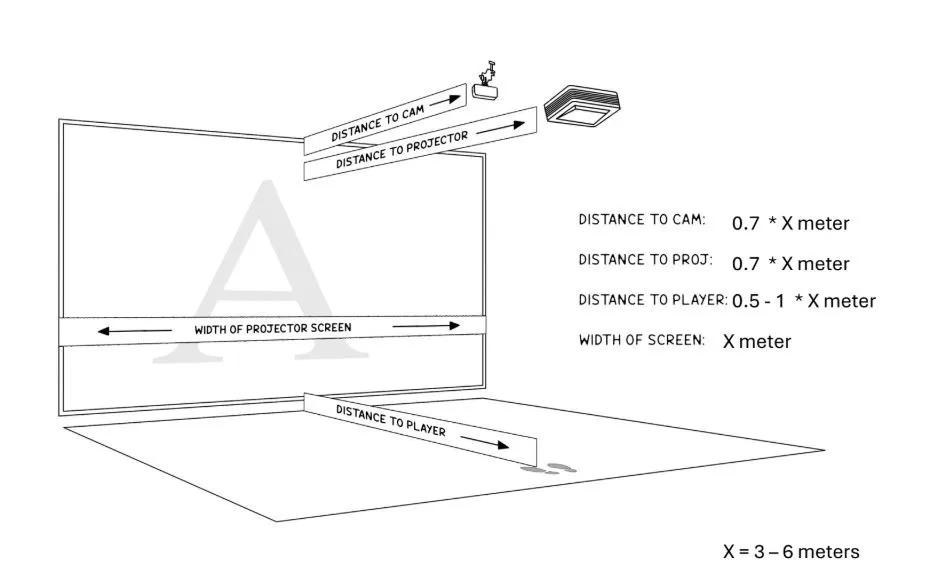
Recommended placements and measurements.

Give us a call, and we’ll help you put together a simulator tailored to your specific needs.
With 15+ years of experience, we’ve helped everyone from professional hunters and hunting clubs to complete beginners find the right simulator setup.
Give us a call at +46 8 30 46 56
Mail us at sales@simway.se
Come visit our showroom in central Stockholm to try out and see how SimWay Hunt works for you!
Did you know we also have an online shop?
Looking to expand your simulator system with another rifle replica? Or perhaps you’re looking for spare parts or accessories? Then be sure to check out our online shop:
www.simwayhunt.com/shop
(Temporarily open for Swedish and Norwegian customers only).
Follow us!